Barcode Scanning
From v1.2, the Customer order page can add items by scanning barcodes: point the camera at a product's barcode, beep, and it's in the cart.
The typical use is the vendor ordering on the customer's behalf: the tablet screen faces the customer, the rear camera faces the vendor, and the vendor holds each item up behind the tablet to scan it, while the customer watches the cart fill up on screen.
It does a different job from AI photo recognition (Chinese):
| Barcode scanning | AI photo recognition | |
|---|---|---|
| Requires | A barcode on the product (commercial barcode or your own label) | A few recognition photos uploaded per product |
| Speed | Continuous scanning, about one item per second | One shot per item, then pick from results |
| Good for | Commercial books, official merch, labelled stock | Helpers who don't know the goods, small items without barcodes |
You can have both turned on and use whichever fits the product.
Where barcodes come from
Products with a commercial barcode (ISBN on commercial books, JAN/EAN-13 on official merch): when creating or editing a product in the Product library (「商品库」), enter it in Commercial barcode (optional) (「商业条码(可选)」). Don't want to type 13 digits? Tap Scan to fill (「扫码填入」) next to it and scan the barcode.
Products without a commercial barcode (doujinshi, can badges, etc.): leave it empty. When a scan finds no matching commercial barcode, it falls back to the product code. So you can print the product code (e.g. A01) as a barcode, stick it on the item or price tag, and scan that. Codes are case-insensitive.
The second barcode on Japanese books is ignored automatically
Japanese books have two barcodes on the back. The lower one starts with 191 / 192 and is a category/price code. Scanning it does nothing and doesn't show an error.
Scanning on the Customer order page
Tap ▦ Scan (「▦ 扫码」) in the order page toolbar (the attract screen also has a Photo recognition · Scan entry, 「拍照识别 · 扫码」) and allow camera access:
- Put the barcode inside the horizontal viewfinder. No shutter button needed: a successful scan adds the item automatically.
- Hit: the viewfinder flashes green, beep, and a "+1 product name" line appears under Recent scans (「最近扫描」).
- Miss: it flashes red with the reason, e.g. "Barcode 4901234567894 not found" (「未找到条码 4901234567894」), "Book A is sold out" (「本子A 已售罄」), "Not enough stock for Book A" (「本子A 库存不足」). Failures don't pop up a dialog, so just carry on with the next item.
- The same code has to leave the frame first before it counts as the next item; holding it in front of the camera won't add it repeatedly.
- If one code matches several products, a Choose product dialog (「选择商品」) lets you pick one.
- The top-right corner has Flip (「翻转」) to switch between front and rear cameras, and Light (「补光」) if the device supports it.
- Tap Back to product list (「返回商品列表」) to exit; the camera turns off right away.
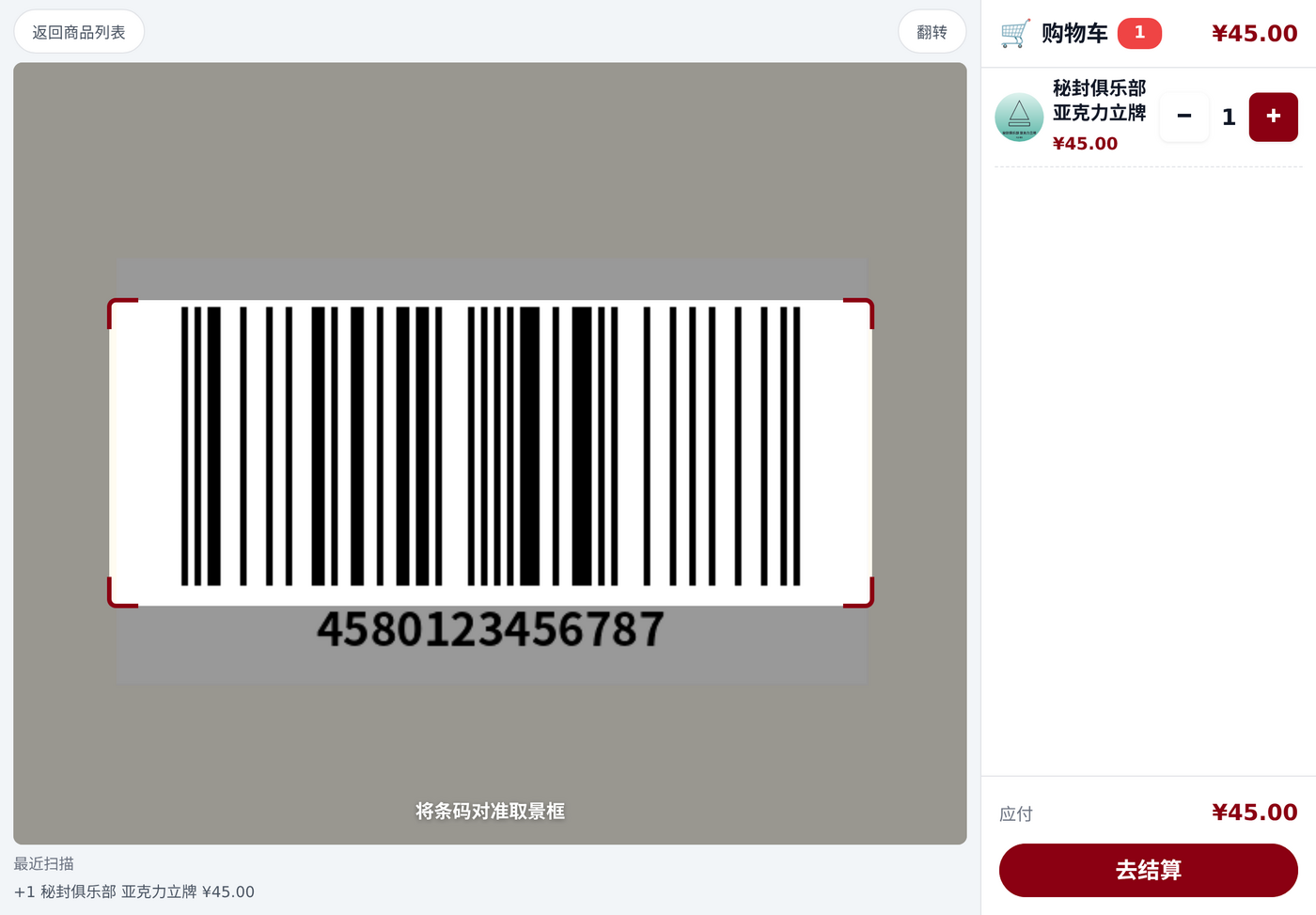
Scanning happens entirely on the device. No internet needed.
Barcode scanner
Plug in a USB or Bluetooth barcode scanner (keyboard mode) and it just works, no setup: scan anywhere on the Customer order page, in any mode, and the item goes straight into the cart.
- When the cursor is in a text box, the scanner's input is typed into the box as normal, not treated as adding an item.
- While the checkout confirmation or payment QR code page is open, the scanner is paused.
On Chinese Windows, switch to an English input method first
With a Chinese IME on, the scanner's keystrokes get captured by the IME and nothing happens.
Why is the Scan button greyed out?
The camera only works over a secure connection:
- Opening the order page inside the BoothKernel app: works.
- Other devices on the LAN using a browser: must use an address starting with
https://(the QR code on the settings page is one). On the first visit, click Advanced → Proceed in the certificate warning. See LAN HTTPS (Chinese).
If it's still grey, check whether the browser has denied camera permission.
Tips
- Front cameras on Windows laptops are mostly fixed-focus, so a 1D barcode held too close won't come into focus. Hold the barcode a bit further from the lens and it scans more easily.
- In dim venues, turn on Light.
- If you print your own code labels, Code 128 is the safest format. QR codes also work.