Closing & Settlement
From v1.2, an event has a clear end: the vendor goes through the closing wizard in the Vendor view, and the system produces a Settlement sheet and freezes the books. The settlement sheet answers "how do the numbers work out": where each circle's goods went, how much each is owed, and how much I need to transfer to whom.
The numbers on the settlement sheet are calculated from the books, not verified by the system
BoothKernel isn't connected to any payment service. "I owe XX" is the amount due to transfer, not proof that you've transferred it; "Actually received" is what you counted and entered yourself. The system has no way to verify any payment, so keep your own receipts when you transfer money.
First: Circle = Owner
Every product belongs to a Circle, i.e. its Owner: whoever's goods were sold gets the money.
- There is exactly one Your circle (「本社团」), and that's you. Products without a circle belong to Your circle by default.
- To sell on consignment for a friend's circle, create them under Circles (「社团」) in the sidebar, then in the Product library change their products' Circle field (「所属社团」) to that circle.
- Changing the Circle field only affects goods listed in an event afterwards; goods already listed keep their original owner.
If you only sell your own stuff, you can skip this section: the settlement sheet will just have one block for Your circle.
On-site: gifts, scrap, refunds
All three are done in the Vendor view, go straight into the books, and show up on the settlement sheet.
Gift and scrap
Goods that left the booth without being sold: Vendor view → Inventory → Record gift/scrap (「库存 → 登记赠送/报废」).
- Gift (「赠送」): samples taken by friends, little freebies. By default the Owner bears the cost, and the settlement sheet just shows how many were given. If this gift is on you, turn on I'll pay for this (reimburse the owner at full price) (「这笔我自掏(按原价补给货主)」), and at settlement that amount is paid from your side to the owner.
- Scrap (「报废」): damaged, dirty, missing parts, can't be sold anymore. Only affects stock, not money.
If you recorded one by mistake, Undo (「撤销」) it in the list below and the goods return to On-site stock.
Refunds
Vendor view → Orders → Completed, find the order and tap Refund (「订单 → 已完成 → 退货」):
- Choose how many to return line by line. The same product may be split into two lines because of bundle membership; you decide which line to refund.
- For each line choose where the returned goods go: Back to On-site stock (still sellable) (「回现场仓(还能卖)」) or Write off (damaged) (「进损耗(已损坏)」).
- The Refund channel (「退款渠道」) defaults to the payment channel. If they paid cash, refund in cash, otherwise your payment recount won't add up.
- Actual refund (「实际退款」) defaults to the sum of what was paid for the selected lines. You can lower it, but it can't exceed what the customer paid.
Refunds can't be undone. If you refund by mistake, the only fix is to make a reverse order, or add a settlement adjustment at settlement time.
The closing wizard: four steps
When the event ends, switch to the Closing tab (「收摊」) in the Vendor view (on a phone it's in the bottom tab bar). The wizard goes through four steps in order. Which step you're on is determined by the state of the books, so quitting halfway or switching to another device won't lose progress.
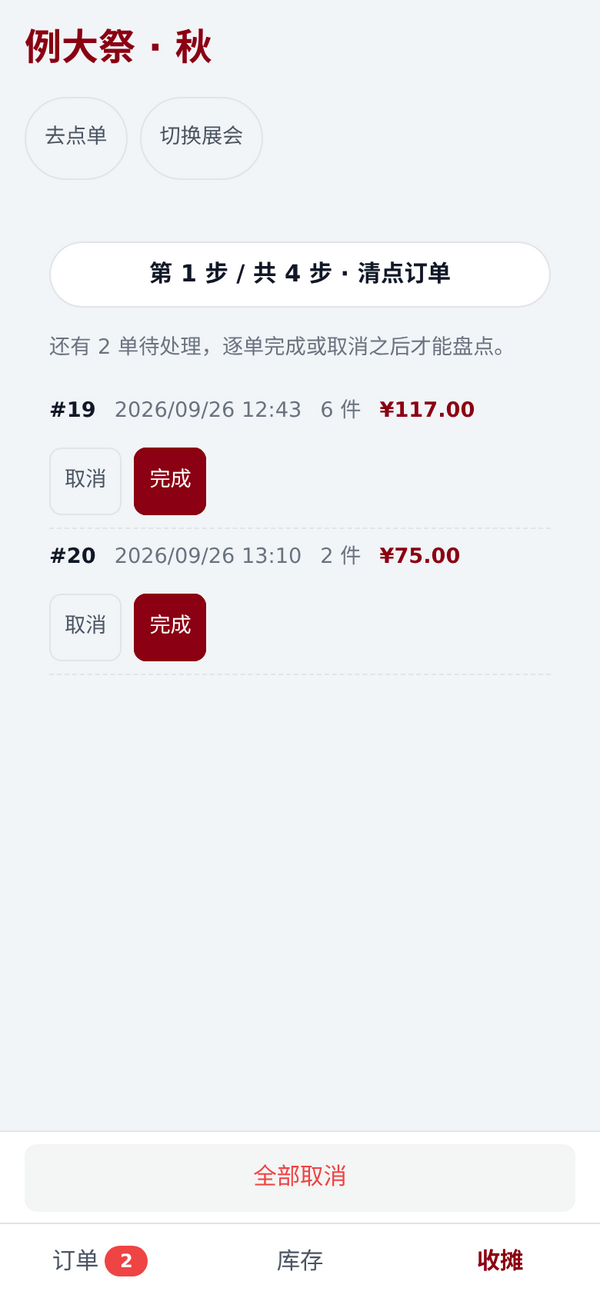
① Clear orders
While there are still pending orders (the customer ordered but the vendor hasn't confirmed payment), the next three steps are locked. Tap Complete (「完成」, opens the payment dialog) or Cancel (「取消」) on each. If you're sure the rest are all junk orders, tap Cancel all (「全部取消」).
Buttons in this step take effect immediately
"Cancel" and "Cancel all" don't ask for confirmation, so look carefully before tapping.
② Stocktake (optional)
Count how many of each product are actually left and type it into the Counted box (「实数」).
- The box is not pre-filled with the book quantity. "I counted and it matches" and "I didn't count" are different things, so type it in even when it matches.
- The top shows "Counted X / Y" (「已盘 X / Y」); turn on Only unfilled (「只看未填」) to see only rows you haven't filled in.
- Switching away halfway is fine: filled numbers are kept as a draft on this device.
- If counted numbers differ from the books, you'll get a list of differences to confirm before submitting. Stocktake differences can't simply be undone after submitting.
If you really don't have time, tap Skip stocktake (「跳过盘点」). The settlement sheet will note "Not counted; remaining quantities are estimated from the books" (「未盘点,剩余数为账面推算」) rather than treating book numbers as counted numbers.
③ Take back
Confirm you're taking everything left in On-site stock with you and tap Confirm take back (「确认带回」). After that, every product's On-site stock is zero.
④ Settle
If anything is still blocking (e.g. On-site stock isn't empty), it's listed with ⚠ and the End event button (「结束展会」) is greyed out. Once there's nothing left, tap End event:
- The event status becomes Settled (「已结算」) and the books are frozen;
- The Closing tab turns into this event's Settlement sheet right there, which the vendor can view and export.
Reading the settlement sheet
There are two ways in, with exactly the same content:
- Admin console: Event workbench → Closing · Settlement (「收摊 · 结算」)
- Vendor view: the Closing tab (「收摊」) of a settled event
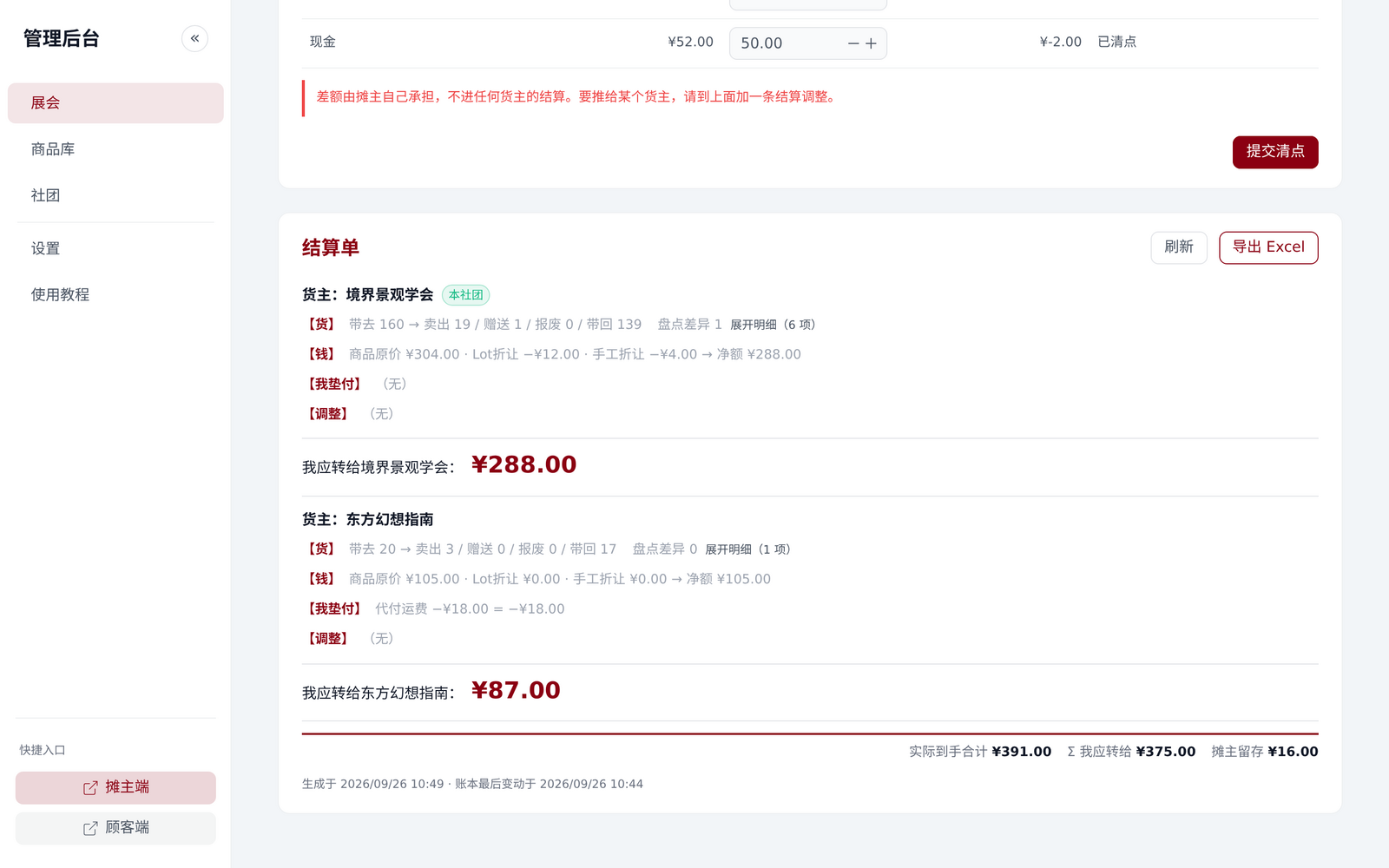
One block per Owner:
| Row | Meaning |
|---|---|
| [Goods] (【货】) | Brought N → sold / gifted / scrapped / taken back / On-site stock, plus stocktake differences. Tap Show details (「展开明细」) to see each product |
| [Money] (【钱】) | Original price − bundle discounts − manual discounts (or + manual surcharges) → net amount; refunds and self-paid gifts are listed here too |
| [My advances] (【我垫付】) | Money you advanced on behalf of this circle, deducted from what you owe |
| [Adjustments] (【调整】) | Settlement adjustments, each item listed by name |
| I owe X (「我应转给 X」) | The final amount to transfer to this circle |
At the bottom are three totals: Total actually received (「实际到手合计」), Σ I owe (「Σ 我应转给」), and Vendor keeps (「摊主留存」).
Tap Export Excel (「导出 Excel」) to get settlement_<展会名>.xlsx; the four sheets are explained in Export & Review.
When a red warning bar appears at the top
"This settlement sheet doesn't match the books, don't export yet" (「这张结算单和账本对不上,先别急着导出」) means some entry was recorded wrong. Check first, or report it in the community group, and only export once it's correct.
What you can still change after settling
Once frozen, placing orders, editing orders, restocking, gifts/scrap, refunds, stocktakes, take-backs and settling again are all refused. Only three things can still be added under Closing · Settlement (「收摊 · 结算」) in the Admin console:
- Advance (「垫付」): money you paid up front for a circle (booth fee, printing). Add it after finding the receipt at home. It's deducted from "I owe".
- Settlement adjustment (「结算调整」): money you only realise at home you owe someone extra, or they owe you. Pick the direction with the buttons, I pay them more / They pay me more (「我要多给他们 / 他们要多给我」), and enter a positive amount.
- Payment recount (「收摊清点」): with your WeChat / Alipay statements and the cash box in front of you, enter the actual amount received for every payment channel you used. Any difference from the books is borne by the vendor and doesn't go into any owner's settlement. If you want an owner to bear it, add a settlement adjustment.
These three change the settlement sheet, so its footer says "Books last changed at …" (「账本最后变动于 …」). Check the time before sending it to a circle to make sure it's the latest version.
Deleting an event is not protected by the freeze
Deleting a settled event from the event list permanently deletes it along with all its orders and ledger entries, with no way to recover. Don't delete events you want to keep for reconciliation.