Bundles & Discounts
At a booth, deals usually come in three flavours:
| What the customer hears | How to set it up in BoothKernel |
|---|---|
| "Any 3 postcards for ¥20" | A Pick any N bundle |
| "New book + standee together for ¥50" | A Fixed combo bundle |
| "Call it ¥100 even" | Change the Amount received at checkout |
The first two are set up in the event beforehand, and the cart applies them automatically. The third is a spur-of-the-moment price cut: the vendor just edits the number when taking payment.
You no longer need v1.1's "negative-price products"
We used to suggest creating a -5 yuan product to act as a discount. That counted the discount in sales stats and mixed up real products with discounts. From v1.2 on, use the two methods on this page instead, and simply disable the old negative-price products in the Product library.
Setting up a bundle
Go to Event → Enter event workbench → Pre-event · Bundles → New bundle (「展会 → 进入展会工作台 → 展前 · 套装 → 新建套装」).
Bundles are per event: each event has its own. To reuse them at the next event, use Pre-event · Products → Import from previous event (「展前 · 商品 → 从上一场导入」), which brings the products and bundles over together.
The drawer asks for four things:
- Bundle name (「套装名称」): customers see this in their cart, e.g. "Any 3 postcards for 20".
- Rule (「规则」):
customer picks [N] items from below and pays ¥[total] in all. - How the bundle is filled, one of two:
- 🧩 Fixed combo (one each of these) (「固定组合(这几样各 1 件凑齐)」): for "A + B together for 50". At most 1 of each candidate product.
- 🔁 Pick any N (duplicates allowed) (「任选 N 件(可以拿同款)」): for "any 3 books for 100". Three copies of the same book also count.
- Candidate products (「候选商品」): which products can go into this bundle.
While you fill it in, the How customers will pick panel (「顾客会怎么拿」) at the bottom of the drawer calculates live: the most expensive and the cheapest combination a customer could get, and how much each saves. Combinations that would cost more than the original price are marked "more expensive than original, won't apply" (「比原价贵,不会套用」). Check the preview before saving: it saves you from things like "I meant one of each, but a customer took 3 copies of the same book and still got the deal."
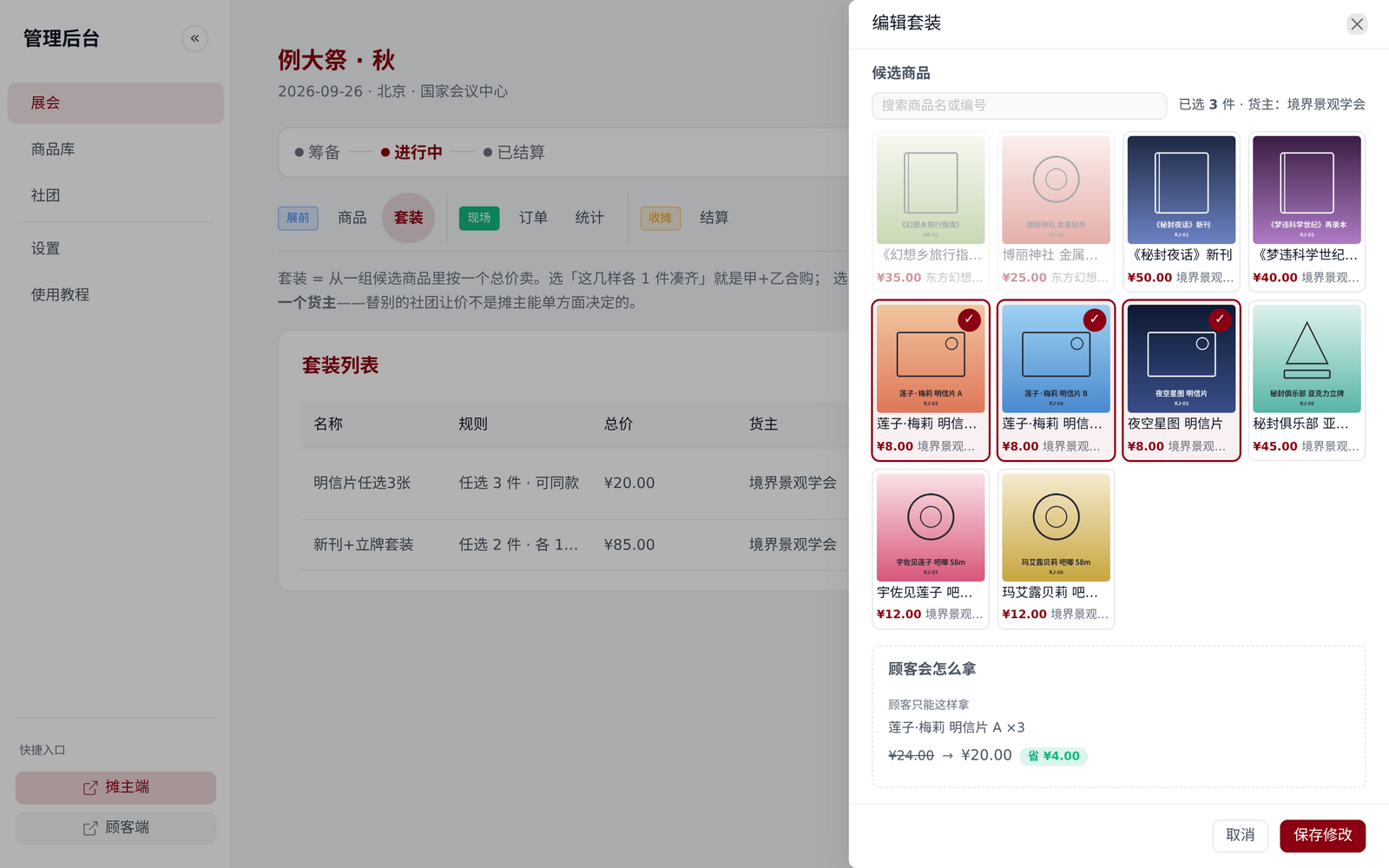
All candidate products must belong to the same Owner
Products you sell on consignment for another circle can't be bundled with your own. Someone has to bear the money a bundle gives away, and cutting prices on another circle's behalf isn't something the vendor can decide alone. Once you pick the first candidate product, other circles' products are greyed out automatically.
What the customer sees
When the customer adds items on the Customer order page, the cart automatically finds the cheapest combination of bundles; the customer doesn't have to choose. Several bundles can apply at once.
The cart spells it out:
Original price   ¥70 (shown struck through)
Applied: Any 3 postcards for 20 ×1   −¥10
Amount due       ¥60
When customers can see why the total dropped, they won't suspect a mistake.

At checkout: break up bundles, change the amount received
After the vendor taps Finish packing (「完成配货」) in the Vendor view, the Confirm payment dialog (「确认收款」) pops up:
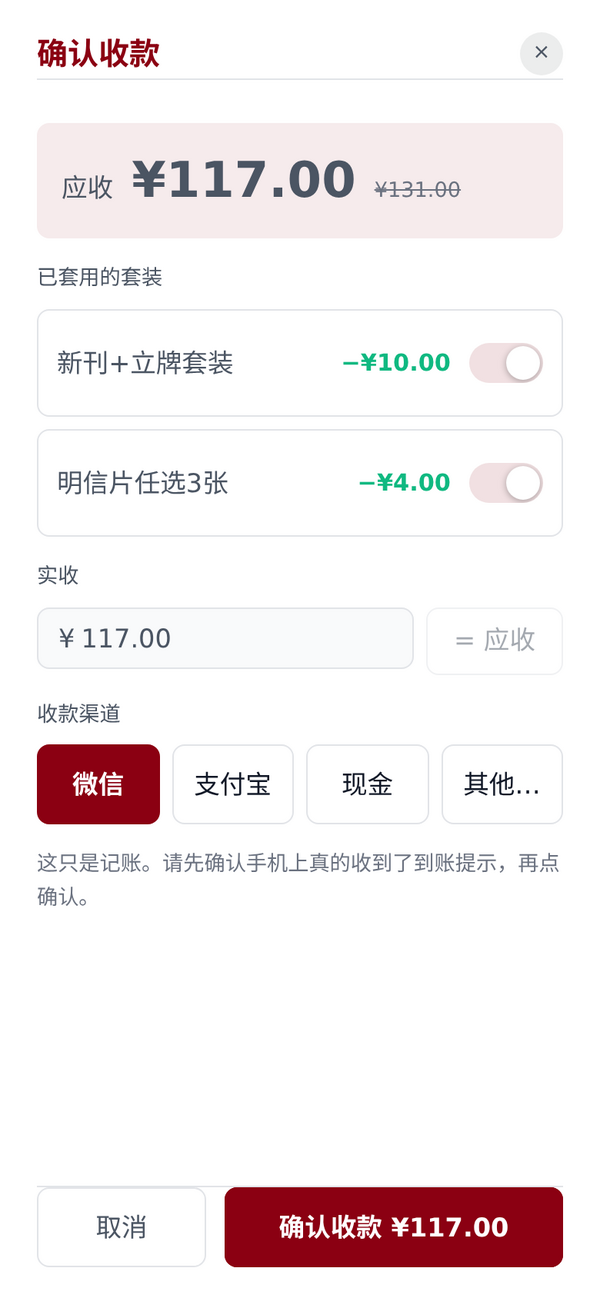
Applied bundles (「已套用的套装」): one row per bundle, each with a switch. If the customer says "I don't want that bundle, I'll just buy them separately", turn the switch off and those items go back to their original prices.
Amount received (「实收」): defaults to the amount due. For rounding down, rounding to an even number, or a discount for a friend, just edit this number:
- Lower: the difference is recorded as a Manual discount (「手工折让」);
- Higher: recorded as a Manual surcharge (「手工加价」), e.g. you threw in a small item that isn't in the system.
Manual discounts and surcharges are all charged to Your circle. Consignment circles' products are still settled at their own prices, so they don't lose out because you rounded down.
Payment channel (「收款渠道」): WeChat / Alipay / Cash / Other. Settlement reconciles by channel, so pick the real one.
"Confirm payment" only records the sale
BoothKernel isn't connected to any payment service. Before you tap confirm, make sure your phone actually showed the payment notification.
What about bundles that can't be split?
Bundles are for combinations that can be split: 5 books in one bag are still 5 separate items in the books, stock is deducted item by item, and a customer can still buy just one of them.
For things that can't be split (a shrink-wrapped gift box, a lucky bag that's ruined once opened), enter them as a standalone product with their own stock.
FAQ
If I change a bundle, do existing orders change? No. An order stores the bundle's name and price at the moment it was placed. Deleting a bundle doesn't affect past orders either.
Why didn't a customer's items get a certain bundle? Usually one of three reasons: the bundle's total isn't cheaper than the original price; a Fixed combo needs one of each, but the customer took 2 of the same item; or there's an even cheaper combination. The preview in the bundle drawer shows exactly how the bundle will be applied.
Can the same product be in several bundles? Yes. The cart picks the cheapest of all possible combinations.